Jumpstart your automation journey with these ready-to-use workflow templates for n8n. Follow the instructions below each template to quickly set up and start automating!
Gmail: Send Email Workflow
Send emails via Gmail automatically. Great for notifications, alerts, or automated messages.
EmailGmailAutomation
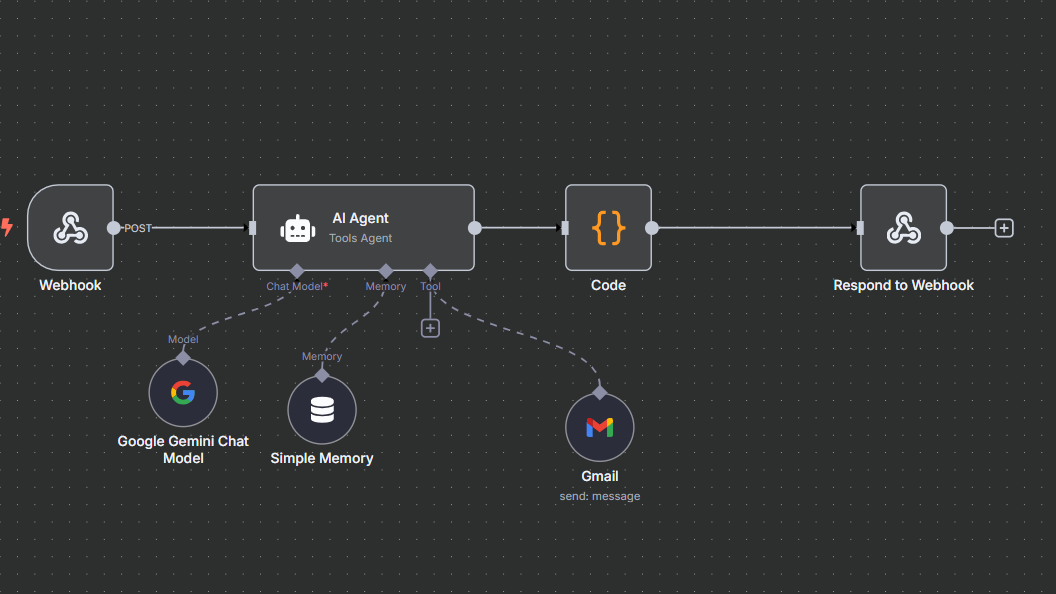
This workflow connects a webhook to an AI Agent powered by Google Gemini, with Gmail integration for sending emails.
{"name":"My workflow","nodes":[{"parameters":{"promptType":"define","text":"={{ $json.body.message }}","options":{}},"type":"@n8n/n8n-nodes-langchain.agent","typeVersion":1.8,"position":[0,-20],"id":"c1430e7f-670c-45ff-80be-ed5a2a5b7d50","name":"AI Agent"},{"parameters":{"sendTo":"={{ /*n8n-auto-generated-fromAI-override*/ $fromAI('To', ``, 'string') }}","subject":"={{ /*n8n-auto-generated-fromAI-override*/ $fromAI('Subject', ``, 'string') }}","emailType":"text","message":"={{ /*n8n-auto-generated-fromAI-override*/ $fromAI('Message', ``, 'string') }}","options":{}},"type":"n8n-nodes-base.gmailTool","typeVersion":2.1,"position":[360,220],"id":"70d79f01-431b-4bba-9ed3-9a93918c2f3f","name":"Gmail","webhookId":"f7e28350-4c20-4277-ab7a-6deb344a42c6","credentials":{"gmailOAuth2":{"id":"caqCEnsCiejZYas0","name":"Gmail account"}}},{"parameters":{"httpMethod":"POST","path":"gmail","responseMode":"responseNode","options":{}},"type":"n8n-nodes-base.webhook","typeVersion":2,"position":[-260,-20],"id":"1f8e8d01-a602-4b12-8994-fd36567647a2","name":"Webhook","webhookId":"2c3468c8-f555-46cb-984d-4129673d81cc"},{"parameters":{"options":{}},"type":"n8n-nodes-base.respondToWebhook","typeVersion":1.1,"position":[700,-20],"id":"75ca9afa-d804-4b1d-ac76-652d01e445d7","name":"Respond to Webhook","alwaysOutputData":true},{"parameters":{"sessionIdType":"customKey","sessionKey":"12345"},"type":"@n8n/n8n-nodes-langchain.memoryBufferWindow","typeVersion":1.3,"position":[40,200],"id":"b3ed5106-2c8a-45f4-b809-295b0b71abcf","name":"Simple Memory"},{"parameters":{"jsCode":"// Loop over input items and add a new field called 'myNewField' to the JSON of each one\nreturn {\n message: $input.first().json.output || \"No response from AI\"\n};"},"type":"n8n-nodes-base.code","typeVersion":2,"position":[360,-20],"id":"54bac038-1df3-4307-9c45-f03421a7872b","name":"Code"},{"parameters":{"modelName":"models/gemini-2.0-flash","options":{}},"type":"@n8n/n8n-nodes-langchain.lmChatGoogleGemini","typeVersion":1,"position":[-120,180],"id":"77cb145b-ebbc-42e3-aa92-89b85b1e0bc9","name":"Google Gemini Chat Model","credentials":{"googlePalmApi":{"id":"0CAYgjYDI7R8xwcE","name":"Google Gemini(PaLM) Api account"}}}],"pinData":{},"connections":{"Gmail":{"ai_tool":[[{"node":"AI Agent","type":"ai_tool","index":0}]]},"Webhook":{"main":[[{"node":"AI Agent","type":"main","index":0}]]},"AI Agent":{"main":[[{"node":"Code","type":"main","index":0}]]},"Simple Memory":{"ai_memory":[[{"node":"AI Agent","type":"ai_memory","index":0}]]},"Code":{"main":[[{"node":"Respond to Webhook","type":"main","index":0}]]},"Google Gemini Chat Model":{"ai_languageModel":[[{"node":"AI Agent","type":"ai_languageModel","index":0}]]}},"active":true,"settings":{"executionOrder":"v1"},"versionId":"75132c4b-9a04-4942-a3eb-41307eefa044","meta":{"templateCredsSetupCompleted":true,"instanceId":"c120cfab186612b4e1cc5fa3db0b0db5cf70e67d23ee72e9a63de20c8a268d5a"},"id":"xCAgJleICs5bzi1u","tags":[]}
Click Copy JSON above.
Open your n8n instance and go to the workflow canvas.
In your n8n workflow canvas, simply press Ctrl+V (or Cmd+V on Mac) to paste the JSON directly onto the canvas.
Set up your Gmail API credentials in the node (replace YOUR_GMAIL_CREDENTIAL).
Save and activate your workflow.
Need help? Watch the video guide provided. If you face any issues, refer to the video for troubleshooting steps.
Weather: Get Weather Data Workflow
Fetch current weather data for a specified city using the OpenWeatherMap API. Extend to send notifications or trigger other actions.
WeatherAPIAutomation
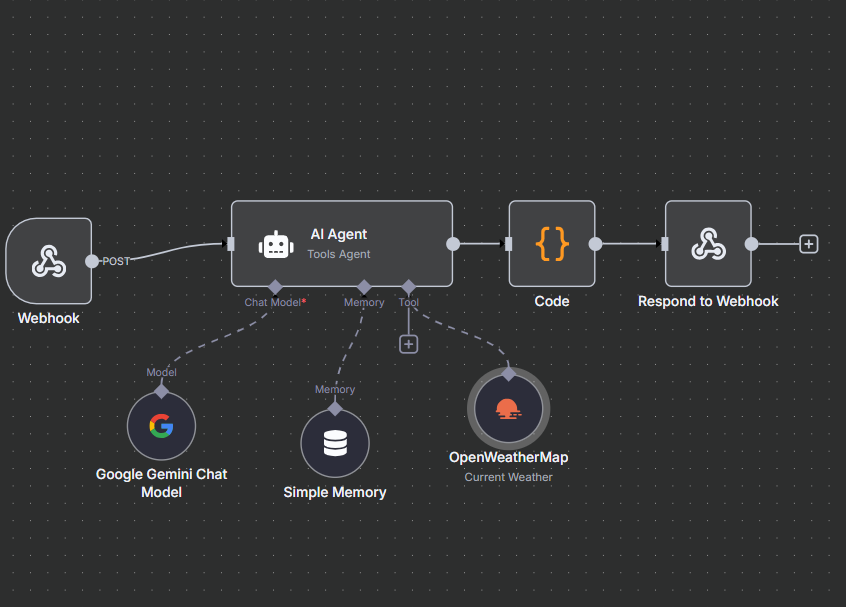
This workflow connects a webhook to an AI Agent with OpenWeatherMap, Wikipedia, and YouTube tools for comprehensive responses.
{"name":"chat","nodes":[{"parameters":{"promptType":"define","text":"=me {{ $json.body.message }}","options":{}},"type":"@n8n/n8n-nodes-langchain.agent","typeVersion":1.8,"position":[660,0],"id":"503d020e-9e6a-472e-9d38-a4cbd4a684cd","name":"AI Agent"},{"parameters":{"modelName":"models/gemini-2.0-flash","options":{}},"type":"@n8n/n8n-nodes-langchain.lmChatGoogleGemini","typeVersion":1,"position":[540,220],"id":"3797ca99-e3e3-4503-b035-a39ba84e945e","name":"Google Gemini Chat Model","credentials":{"googlePalmApi":{"id":"0CAYgjYDI7R8xwcE","name":"Google Gemini(PaLM) Api account"}}},{"parameters":{"sessionIdType":"customKey","sessionKey":"123456"},"type":"@n8n/n8n-nodes-langchain.memoryBufferWindow","typeVersion":1.3,"position":[740,240],"id":"f5f01fec-f394-4043-9256-119f766481f3","name":"Simple Memory"},{"parameters":{},"type":"@n8n/n8n-nodes-langchain.toolWikipedia","typeVersion":1,"position":[960,240],"id":"53f17537-a505-43d6-9279-c8cf6381cf68","name":"Wikipedia"},{"parameters":{"options":{}},"type":"n8n-nodes-base.respondToWebhook","typeVersion":1.1,"position":[1240,0],"id":"8705af19-5756-4886-952c-ba028be78215","name":"Respond to Webhook","alwaysOutputData":true},{"parameters":{"httpMethod":"POST","path":"rakesh","responseMode":"responseNode","options":{}},"type":"n8n-nodes-base.webhook","typeVersion":2,"position":[240,40],"id":"efb6c70d-7702-44c7-8dd7-b539b1c46ace","name":"Webhook","webhookId":"ec6698cf-6781-4147-ba0d-bcf3df2fa0f5"},{"parameters":{"jsCode":"// Example for JavaScript-based code node\nreturn {\n message: $input.first().json.output || \"No response from AI\"\n};\n"},"type":"n8n-nodes-base.code","typeVersion":2,"position":[1020,0],"id":"2d65e293-4962-44ce-a8f6-6759d2e4b1ed","name":"Code"},{"parameters":{"cityName":"={{ /*n8n-auto-generated-fromAI-override*/ $fromAI('City', ``, 'string') }}","language":"en"},"type":"n8n-nodes-base.openWeatherMapTool","typeVersion":1,"position":[1120,220],"id":"78022d93-14d1-43f1-8bee-4d5bad839857","name":"OpenWeatherMap","credentials":{"openWeatherMapApi":{"id":"CMGUGjGVEwEETFiT","name":"OpenWeatherMap account"}}},{"parameters":{"filters":{},"options":{}},"type":"n8n-nodes-base.youTubeTool","typeVersion":1,"position":[1320,220],"id":"8b32d74e-5cc7-455b-b591-bdb8e73c0f8b","name":"YouTube"}],"pinData":{},"connections":{"Google Gemini Chat Model":{"ai_languageModel":[[{"node":"AI Agent","type":"ai_languageModel","index":0}]]},"Simple Memory":{"ai_memory":[[{"node":"AI Agent","type":"ai_memory","index":0}]]},"Wikipedia":{"ai_tool":[[{"node":"AI Agent","type":"ai_tool","index":0}]]},"AI Agent":{"main":[[{"node":"Code","type":"main","index":0}]]},"Webhook":{"main":[[{"node":"AI Agent","type":"main","index":0}]]},"Code":{"main":[[{"node":"Respond to Webhook","type":"main","index":0}]]},"OpenWeatherMap":{"ai_tool":[[{"node":"AI Agent","type":"ai_tool","index":0}]]},"YouTube":{"ai_tool":[[{"node":"AI Agent","type":"ai_tool","index":0}]]}},"active":true,"settings":{"executionOrder":"v1","timezone":"Asia/Kolkata","callerPolicy":"workflowsFromSameOwner"},"versionId":"58f6503f-e263-48a8-b5b2-1a0427f19e1b","meta":{"templateCredsSetupCompleted":true,"instanceId":"c120cfab186612b4e1cc5fa3db0b0db5cf70e67d23ee72e9a63de20c8a268d5a"},"id":"uv5ENuAEWpgPrIAy","tags":[]}
Click Copy JSON above.
Open your n8n instance and go to the workflow canvas.
In your n8n workflow canvas, simply press Ctrl+V (or Cmd+V on Mac) to paste the JSON directly onto the canvas.
Set your OpenWeatherMap API key in the HTTP Request node (replace YOUR_OPENWEATHER_API_KEY).
Save and activate your workflow.
Need help? Watch the video guide provided. If you face any issues, refer to the video for troubleshooting steps.
How to Import Workflows
Method 1: Using JSON Code
Copy the workflow JSON for the template you want to use by clicking the Copy JSON button.
In your n8n workflow canvas, simply press Ctrl+V (or Cmd+V on Mac) to paste the JSON directly onto the canvas.
Set up any required API credentials or keys as described in the workflow instructions.
Save and activate your workflow.
Method 2: Within n8n Interface
Locate the template you want to use in the n8n template library.
Select the nodes you want to copy by dragging a selection box around them.
Use keyboard shortcut Ctrl+C (or ⌘+C on Mac) to copy the selected nodes.
Create a new workflow or open an existing one where you want to paste the nodes.
Use keyboard shortcut Ctrl+V (or ⌘+V on Mac) to paste the nodes.
Adjust node positions and connections as needed.
Pro Tips
When importing JSON, make sure to replace any placeholder API keys or credentials with your own.
After importing, test each node individually to ensure proper configuration.
You can modify the imported workflow to suit your specific needs by adding or removing nodes.
Save your workflow frequently while making changes to avoid losing your work.
Still have trouble? Watch the provided video guides for step-by-step troubleshooting and setup.
Video Tutorials
Get Started With Google OAuth
Learn how to set up and configure Google OAuth credentials for your n8n workflows.
What is n8n webhook URL and how to connect
Learn how to find and use webhook URLs in n8n to connect your workflows with external applications.
Step-by-Step: N8N Webhooks (From Beginner to Pro)
Comprehensive guide to understanding and implementing webhooks in n8n, covering everything from basic setup to advanced usage.
Get Your API Key for OpenWeather
Step-by-step guide on how to obtain and configure an API key for the OpenWeather service in n8n.